
Streaming
Open manualOBS Studio
Control scenes, sources, recording, streaming, and more through OBS WebSocket.
Touch · Control · Anything
DeviceJockey is designed for people who do not want to adapt their workflow to a fixed remote. It lets them build their own panels and combine devices, protocols, and applications on one control surface.
Available for iPhone, iPad, and Mac through TestFlight.
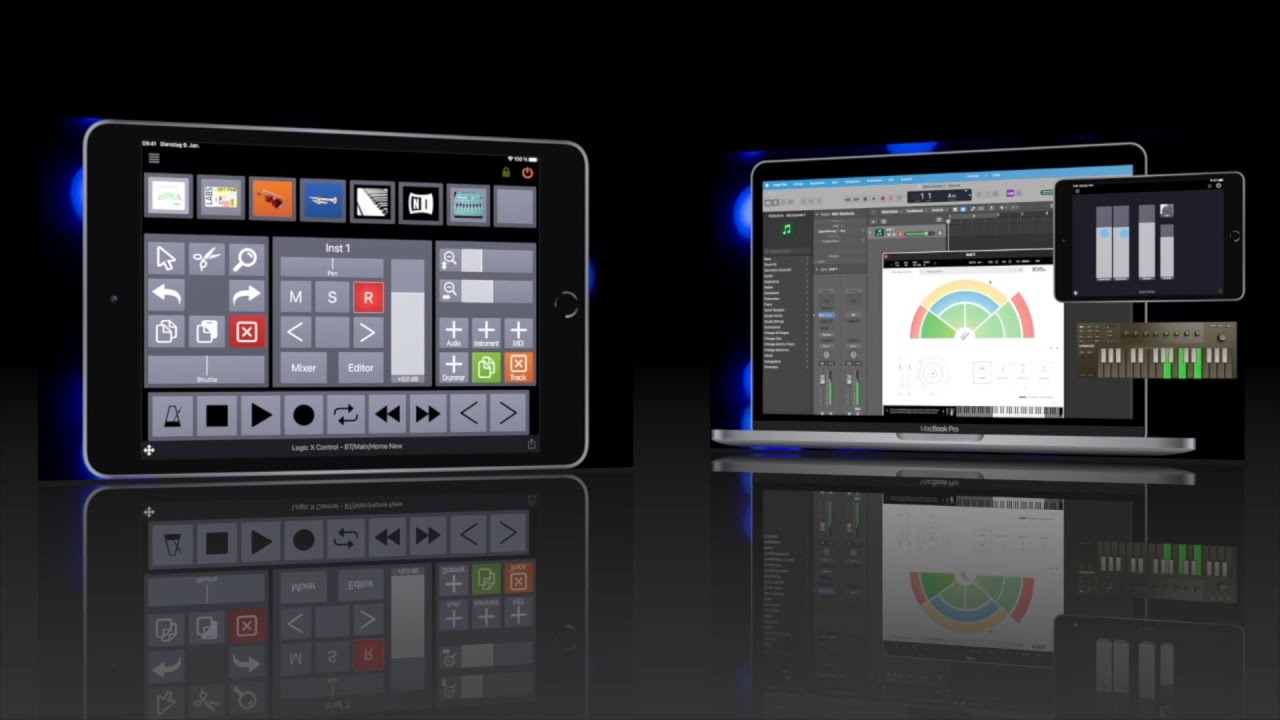
Built around your workflow
Build each control surface from the elements your workflow actually requires. Configure how buttons, sliders, rotary controls, and other items look and behave, connect them to different devices and applications, and organize complete setups in scenes. Everything is created and edited directly in DeviceJockey—no external editor required.
How DeviceJockey is organized
Bundle panels, interfaces, macros, and connection settings into an independent setup. Only one scene is active at a time, so only its interfaces are connected and available to panel items.
About scenes →User Manual
Follow the complete Manual from interfaces and items through panels, scenes, commands, events, Swaps, and the more advanced features.
Interface guides
Control scenes, sources, recording, streaming, and more through OBS WebSocket.
Control a 512-channel DMX universe through an Art-Net node on your network.
Control camera functions and reflect their current values on a custom DeviceJockey panel.
Build bidirectional mixer controls for X Air, M Air, X32, and M32 series consoles.
Publish values, subscribe to topics, and connect your control surface to an MQTT environment.
Send and receive flexible control messages using OSC paths and typed arguments.
Looking for a particular topic? Search the documentation.
Control Companion from
DeviceJockey
DeviceJockey sends Companion’s documented OSC remote-control commands. Trigger buttons on any page, row, and column, change their text or colors, and optionally receive your own OSC events back from Companion.
DeviceJockey independently controls Companion through its documented OSC interface. It is not a Companion module or official Companion surface and is not affiliated with, endorsed by, or sponsored by Bitfocus.
Ready to begin?
Join the DeviceJockey beta through TestFlight, then use this manual to connect your first interface and create a panel.