
DeviceJockey controls Companion.
DeviceJockey to Companion
Send button presses, text, and colors from flexible DeviceJockey Panels and Items to Companion’s actions, feedbacks, and devices.
Control Companion from DeviceJockey
Design a DeviceJockey panel around your Companion workflow. Make important buttons bigger, group related controls, add sliders, labels, colors, and images, and arrange everything the way you want.
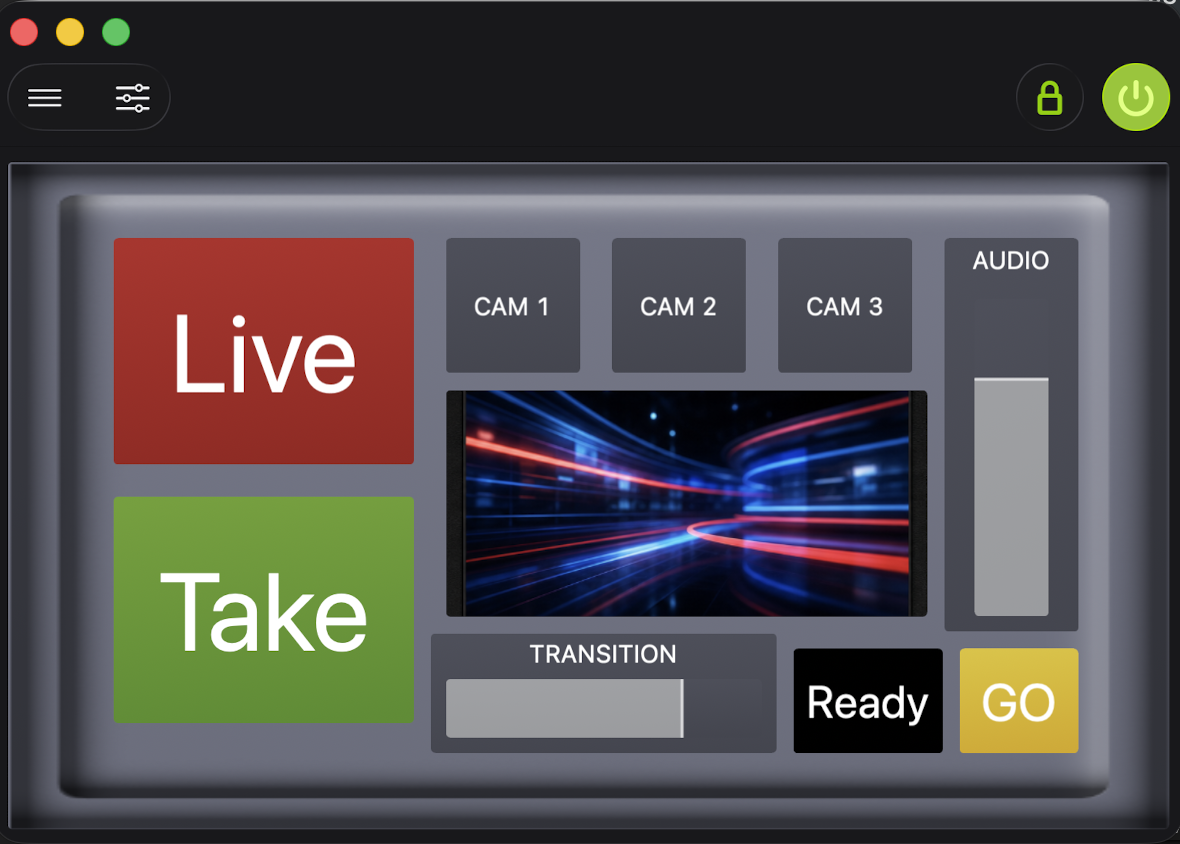
The best of both worlds
Keep Companion’s connections, actions, feedbacks, and variables. DeviceJockey remotely triggers them through Companion’s documented OSC interface. The panels can be as large, visual, contextual, and changeable as your workflow needs.
Two directions. One workflow.
Send button presses, text, and colors from flexible DeviceJockey Panels and Items to Companion’s actions, feedbacks, and devices.
Send events, values, and status from Companion to DeviceJockey Panels, Items, and states.
Companion’s built-in OSC listener receives remote-control paths from DeviceJockey. Optionally, a Generic OSC connection in Companion can send your own event paths back to DeviceJockey. This is not a Companion surface or module connection.
Setup
12321.Both devices must be reachable over the local network. Each sender targets the IP address and listening port of the other device.
From DeviceJockey to Companion.
The OSC out interface provides prepared Companion Commands through Templates. In the OSC Command settings, select the Template button  and choose the required Companion function. The selected Template builds the required OSC path and prepares the matching values.
/location/1/0/5/pressCompanion identifies a control by page, row, and column. When DeviceJockey sends the generated path, Companion performs everything configured on that button.
Use OSC Path for button actions, OSC Value for text or CSS colors, and OSC Three Values for RGB colors.
Select the Template button beside the OSC path and choose a function beginning with Companion.
Set Page, Row, and Column in the prepared controls. For text, color, or variables, enter the value DeviceJockey should send.
Button Tap, Button Press, Button Release, Rotation Trigger Left, Rotation Trigger Right, and Rescan.
Button Text, Text Color CSS, Background Color CSS, and Set Value of Custom Variable.
Button Text Color RGB and Button Background Color RGB with prepared red, green, and blue arguments.
Paths such as /program/camera/2 remain understandable when a Companion button later moves to another page or position.
It creates a valid Companion path and suitable value configuration. You can still change the generated path or values afterward.
From Companion to DeviceJockey.
In Companion, add a Generic OSC action to a button and choose a clear path such as /show/live or/camera/preview. In DeviceJockey, configure an OSC Event with the same path. The Event can light up an Item, load a state, change a label, or perform a Command.
Use an OSC Path Event for a simple trigger such as /show/go.
Use OSC Range to map an incoming numeric value to a Slider or Rotary control.
Arrange buttons, sliders, labels, and images in a layout built around your workflow instead of a fixed button grid.
Use states and visibility to show only the controls needed for the current scene, device, or production step.
Turn Companion events into large labels, color changes, and status indicators that operators can understand at a glance.
Troubleshooting
Each OSC out sender must use the receiver’s IP address, not its own.
DeviceJockey’s outgoing port must match Companion’s OSC listen port. Companion’s Generic OSC target port must match DeviceJockey’s OSC in port.
OSC paths are exact. Compare slashes, page, row, column, spelling, and capitalization.
Strings, integers, floats, and booleans are different OSC value types, even when their values look similar.
Start with a fixed /location/1/0/0/press path or a value-free return event before adding more logic.