
Send commands through the broker.
DeviceJockey → Broker → Subscriber
A Command publishes a UTF-8 text or JSON payload to its configured topic.
- Topic
- Identifies where the message is published
- Used by
- MQTT Value and MQTT Range commands
DeviceJockey
Interfaces
Publish control values and use subscribed messages as feedback for your DeviceJockey panel.
Broker connection
DeviceJockey connects to an MQTT broker as an MQTT 3.1.1 client over TCP. Commands publish messages to topics. Events subscribe to topics and react to configured payloads by updating Items or executing commands through Remote Options.
A Command publishes a UTF-8 text or JSON payload to its configured topic.
An Event subscribes to its topic filter and evaluates each received payload.
DeviceJockey and the controlled system do not connect directly. Both connect to the same MQTT broker.
Setup
Make sure the broker is reachable and collect its address, port, and required credentials.
Enter the broker host and port, a unique Client ID, and any authentication or TLS settings required by the broker.
Add MQTT Commands to Items that should publish messages. Add MQTT Events to Items that should react to subscribed topics and payloads.
Connection settings
Enter the IP address or host name of the MQTT broker.
Use the broker port. Common defaults are 1883 without TLS and 8883 with TLS.
Give this connection an ID that is unique among clients connected to the broker.
Enable authentication and enter the username and password when required by the broker.
Set the maximum idle interval. DeviceJockey sends PING requests so both sides can detect a lost connection.
Enable it for a fresh session. Disable it when the broker should retain subscriptions and eligible missed messages for this Client ID.
Let the broker publish a configured message if DeviceJockey disconnects unexpectedly. Configure the Last Will →
Publish · Commands →
Each command defines a topic, payload, QoS, and Retain setting. To use a Swap in a topic, Text payload, or JSON payload, insert it as \(swapname). DeviceJockey replaces the expression with the current Swap value before publishing the message.Learn about Swaps →
Publish a configured text or JSON payload when the Command is performed.
Map the Item's value between a configured minimum and maximum, then insert the result into text or the selected JSON attribute.
For text payloads: Use ${value} as a placeholder. A Slider at 50% can therefore turn level=${value} into level=50.
For JSON payloads: Enter the name of the value-holding attribute, such as level, in Dynamic Value Attribute. DeviceJockey replaces that attribute's value.
← Subscribe · Events
An MQTT Event waits for a message on its configured topic. When a message arrives, DeviceJockey checks the payload. If the configured conditions are met, the Event reacts and controls the selected Item.
The broker delivers a message on a topic to which the Event subscribes.
The topic must match first. DeviceJockey then compares the configured text or JSON with the incoming payload. For JSON, only the configured attributes must match; additional attributes are allowed so unrelated data does not prevent the Event from reacting.
If the check succeeds, the Event performs its action on the Item or applies the received value.
Use this when one particular message should make the Event react.
Text: The Event reacts only when the complete incoming text matches. Spaces and line breaks at the beginning and end are ignored.
JSON: The Event reacts when the configured attributes exist in the incoming JSON and their values match. Additional attributes are ignored, keeping the Event reliable when the publisher includes unrelated data.
Use this when the message contains a changing number that should control a Slider or another ranged Item.
Text: The fixed text around ${value} must match. DeviceJockey reads the content at the placeholder position as the value.
JSON: The configured attributes must match, except for Dynamic Value Attribute. DeviceJockey reads that attribute as the value. Additional attributes are ignored, so unrelated data does not prevent the Event from reacting.
Extract the configured text placeholder or JSON attribute and display its value in the Item's label.
Enable or protect supported Item interaction when the topic and payload match.
Message editor
The message editor is used for MQTT Commands and Events as well as the Last Will message. Choose the entry type before entering the payload so DeviceJockey can offer the appropriate editing and matching functions.
Use MQTT Value for a message that is always the same. Use MQTT Range when part of the message should come from the Item, for example the current position of a Slider.
power=onThe fixed message above is sent exactly as entered. The step-by-step example below explains how to include a Slider value.
MQTT Value sends the entered JSON unchanged. MQTT Range can change the value of one selected attribute before sending it.
{
  "level": 0,
  "power": true
}
To send the Slider value, enter level in Dynamic Value Attribute. If the Slider value is 50, DeviceJockey changes "level": 0 to "level": 50.
DeviceJockey searches the object for the configured name. If the same attribute name occurs more than once, it may not identify the value you intended.
Editor controls
These controls belong to the message editor. They help you enter, check, reuse, and adjust payloads without changing what the MQTT message means.
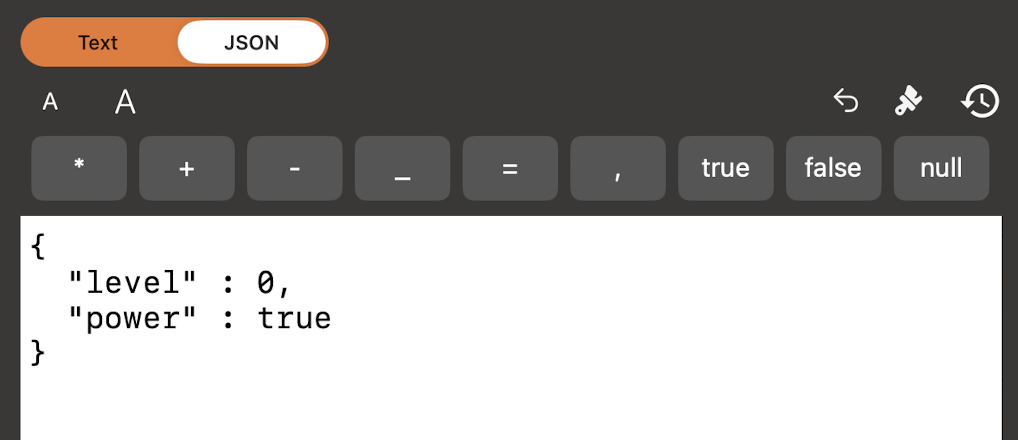
The editor combines the Text and JSON selector, symbol bar, formatting, Undo, History, and message area.
Insert JSON punctuation, operators, and the values true, false, and null without changing the keyboard.
In JSON mode, tap the brush to parse and format the object. A checkmark confirms valid JSON; an error explains where parsing failed.
Undo recent edits and adjust the monospaced editor font. Smart quotes, autocorrection, and automatic capitalization are disabled.
Tap History to recall the next saved message. Press and hold it to open the list and select an earlier entry.
Use Copy JSON and Paste JSON in the edit menu to transfer a complete JSON message between editors in DeviceJockey.
Delivery and retained state
Send without an MQTT acknowledgement. This has the lowest overhead but no MQTT-level delivery confirmation.
Wait for an acknowledgement and retry when necessary. The receiver may see a duplicate.
Use the full acknowledgement exchange for exactly-once delivery with the highest overhead.
Ask the broker to keep the published message as the current value for future subscribers.
A retained brightness or operating state can initialize a new subscriber. A momentary trigger usually should not be retained.
Reliable panel state
A slider can publish its requested value to a command topic. A corresponding event can subscribe to a state topic and display the value confirmed by the controlled system. This also reflects changes made by another MQTT client.
Use Remote Options when an incoming MQTT message should start one or more commands.
Learn about Remote Options →Last Will
An MQTT Last Will message is registered with the broker during connection. If DeviceJockey loses the connection without disconnecting normally, the broker publishes that message on the configured topic.
Define where the availability message is published and which payload it contains.
Choose the delivery level the broker should use for the Last Will message.
Retain the Last Will when new subscribers should immediately see the disconnected state.
Secure connections
DeviceJockey can require a minimum of TLS 1.2 or TLS 1.3. The appropriate trust mode depends on the certificate setup of your broker. Client identity import is available for mutual TLS authentication.
Validate the broker with certificates trusted by iOS.
Add an imported CA certificate as a trust anchor for the broker connection.
Require the system-trusted certificate chain to contain the imported broker certificate.
Require the system-trusted certificate chain to contain the imported public key.
Import a password-protected PKCS#12 identity when the broker requires mutual TLS.
The custom CA mode requires a certificate authority certificate. Certificate pinning requires the broker server certificate.
Topic filters
Topics are case-sensitive and cannot be empty or contain spaces in DeviceJockey. MQTT Events can subscribe to an exact topic or use MQTT wildcards in their topic filter.
studio/lights/key/state receives only that topic.
+ · One levelstudio/lights/+/state receives the state topic for any one light name at that level.
# · Remaining levelsstudio/lights/# receives every topic below the lights hierarchy.
For example, publish requests to studio/lights/key/command and subscribe to studio/lights/key/state.
Troubleshooting
Confirm that the broker is reachable at the configured address and that the TLS setting matches the selected port.
Use a unique ID. Some brokers disconnect an existing client when another client connects with the same ID.
Compare the username, password, and broker access permissions.
Topic names are case-sensitive. Check every level and separator.
Confirm whether the publisher sends text or JSON and whether it contains the values that should make the Event react.
Check the minimum TLS version, trust mode, certificate, and optional client identity.