
Button
Ideal for direct actions. A button can react to a tap, long press, touch down, or touch up.
DeviceJockey
Manual
Items are the controls and displays you arrange on a panel to interact with devices and software.
Your building blocks
Every button you press, value you adjust, and status you monitor is represented by an item. Combine different item types to build a panel that matches the controls required by your workflow.
Items can send commands through an interface and react to incoming events. Their appearance and behavior can be configured independently, so the same item type can serve many different purposes.
Common controls
Ideal for direct actions. A button can react to a tap, long press, touch down, or touch up.
Change a value within a range. Examples include volume, brightness, camera settings, or position.
Switch between two states and show whether a function is currently on or off.
Select one option from a group, such as a source, operating mode, or panel destination.
Display static or changing text and use light states to communicate additional status.
Present a received value together with a label that identifies its source or meaning.
Specialized items
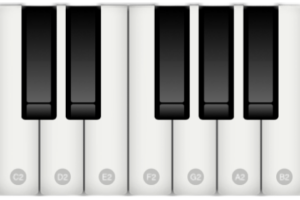
Send MIDI notes to a DAW with configurable keys, octave, starting note, and velocity.
Monitor commands, events, and system information while developing and troubleshooting a panel.
Monitoring interfaces requires additional resources. Select only the interfaces you currently need to inspect.
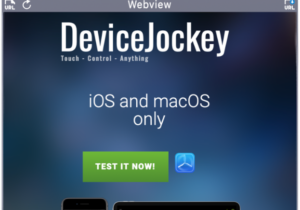
Display web content inside a panel and update or reload its URL through events.
Monitoring interfaces requires additional resources. Select only the interfaces you currently need to inspect.
Commands and events
Commands describe what an item sends when you interact with it. Events describe how the item reacts when a device, application, or DeviceJockey itself sends information back.
Getting started
Go to the panel on which you want to place the new control.
Touch and hold an empty position, then choose “New” and an item type.
Set its title, colors, appearance, and item-specific properties.
Add commands to send and events that update the item.
Across several panels
An item can remain on one panel or appear across a panel group or complete scene.
Across different panels
Give matching items the same Item State Link ID when a control should keep its state as you move from one panel to another within the same scene.