
Interfaces communicate
They connect DeviceJockey to devices, applications, and internal functions.
About interfaces →DeviceJockey
Manual
Panels are the control surfaces on which you arrange and use your items.
Your control surface
A panel provides the space for buttons, sliders, rotary controls, labels, and other items. You decide which controls belong together and where they appear. This allows each panel to match a specific part of your workflow.
You can create and use multiple panels. A focused panel is often easier to operate than one surface containing every available control.
How the parts fit together
They connect DeviceJockey to devices, applications, and internal functions.
About interfaces →They send commands, react to events, and show information on a panel.
About items →They arrange related items into control surfaces for different tasks.
Panel size and navigation
Panels are not limited to the visible screen area. Zoom gives you an overview or a closer look at individual controls. Pan lets you move across a larger panel while arranging or using its contents.
Create separate panels when controls serve clearly different tasks. This reduces searching during live operation.
About Item Visibility →Watch the basics
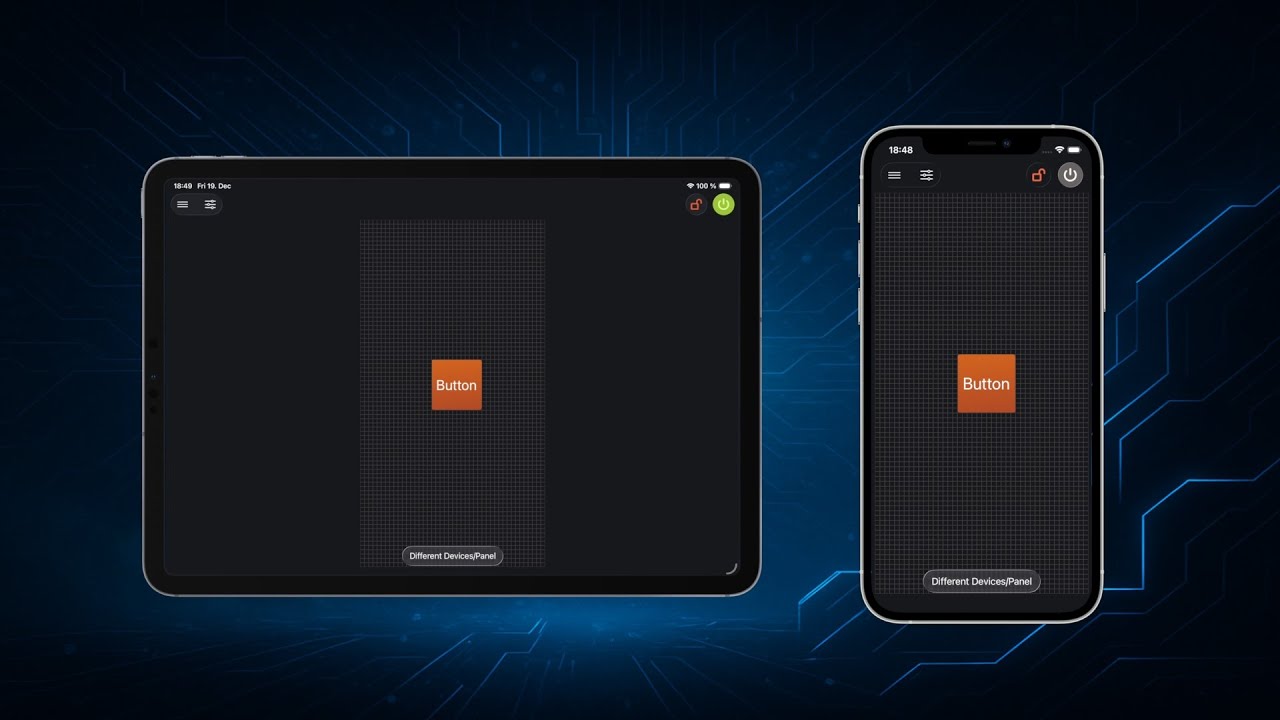
Getting started
Add a new panel for the task you want to control.
Decide which part of your workflow belongs on this panel.
Touch and hold an empty position, then choose “New” and an item type.
Place and configure the items so they are clear and easy to operate.