
Edit relevant properties such as titles, visibility, and colors when they are supported by the selected item.
DeviceJockey
Manual
Shared Values
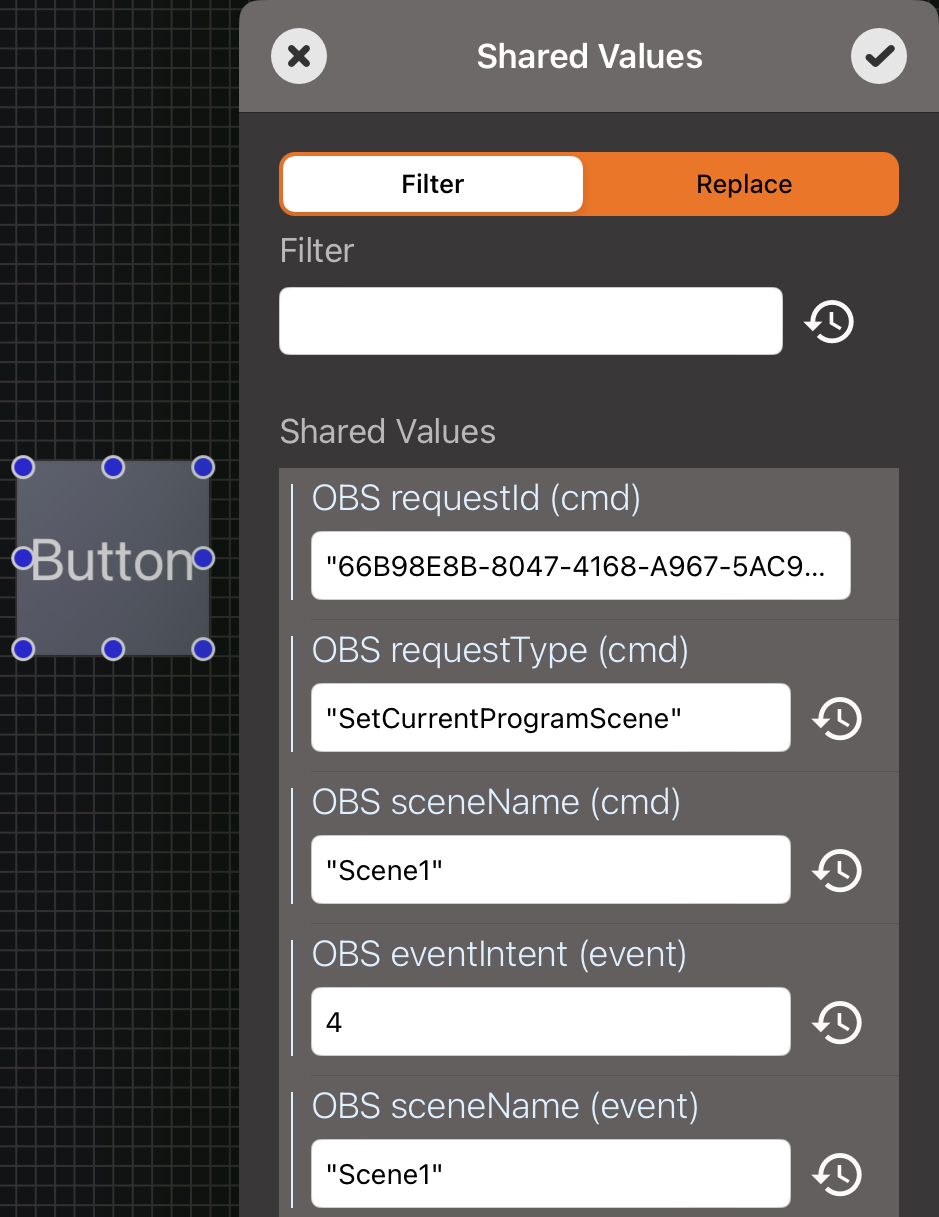
Review and edit related settings from selected items, commands, and events in one place.
A faster editing workflow
Bring distributed settings into one list.
Configuring an item often involves several places. You may need to edit the item itself, then open its commands and events separately. Shared Values collects the relevant settings from the selected items in a single editing view.
This is especially useful after duplicating an item or when several selected items need related changes. You can inspect individual fields, filter the list, and replace matching text across multiple fields.
Shared Values are not Swaps.
Shared Values is the name of an editing tool. It does not create a runtime value and it is not a group of Swap values. A Swap stores data that commands, events, or scripts can use while a setup is running.
Open the Swaps manual →Open Shared Values
Start with one or more selected items.
1
Select items
Select the item or items whose configuration you want to review.
2
Open the menu
Long press one of the selected items to display the item menu.
3
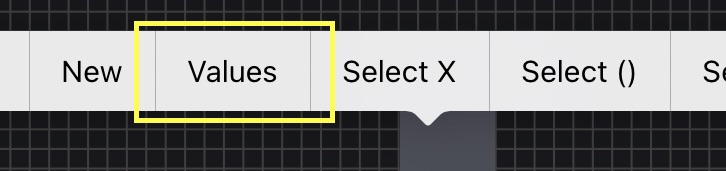
Choose Values
Select “Values” to open the Shared Values editing view.
4
Confirm changes
Use the check mark to save the edited values or cancel to discard them.
Editing view
Work with item, command, and event settings together.
Review and change values stored in the commands belonging to the selected items.
Review and change values stored in the events belonging to the selected items.
Combine the available settings from several selected items in the same editing view.
Find
Filter a large configuration.
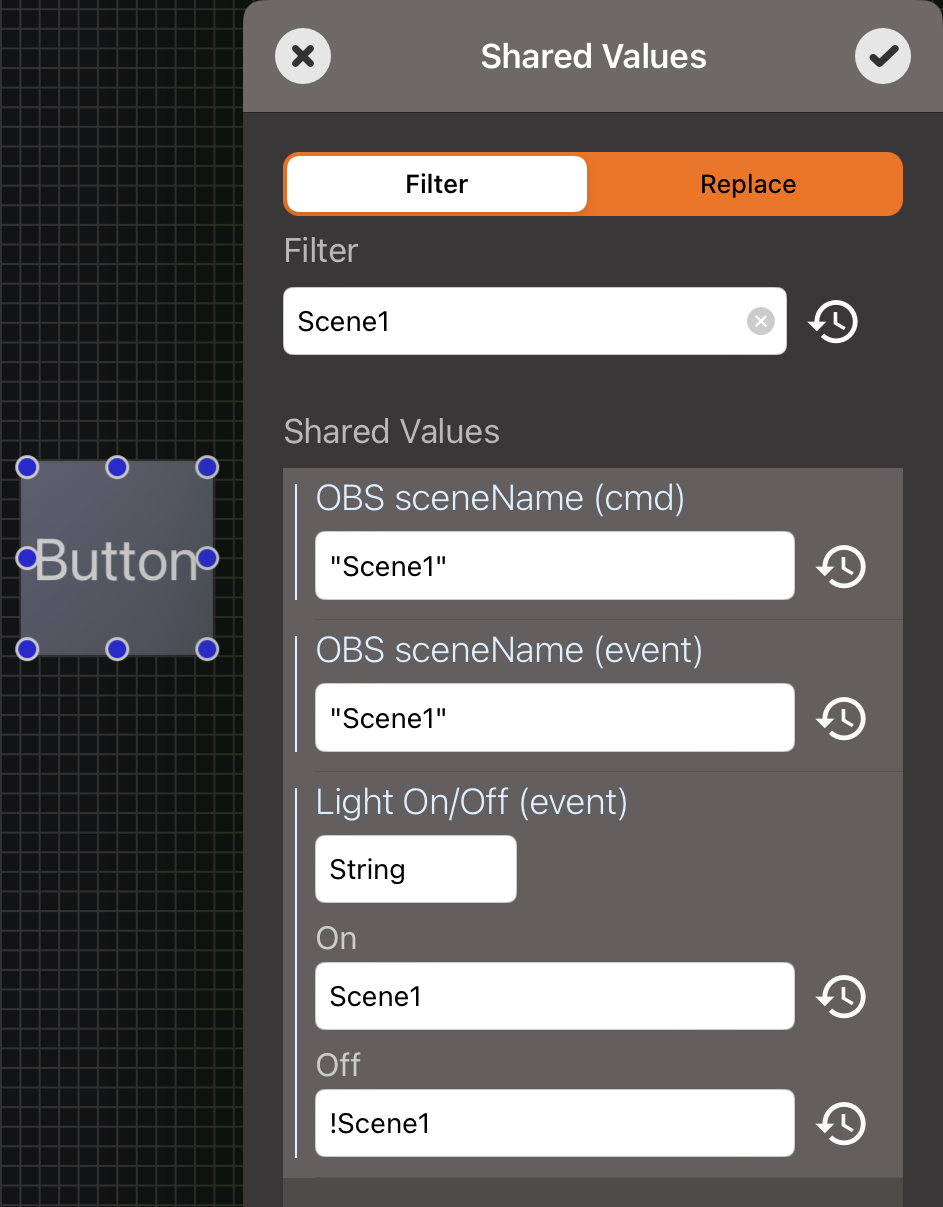
Enter text in the Find field to show matching values and headings. Related fields remain visible so that the meaning of a match stays clear. This helps you locate a scene name, path, address, or other setting without opening every command and event separately.
Replace
Change repeated text in one operation.
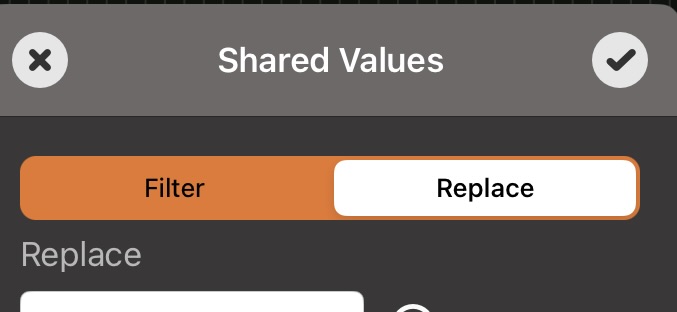
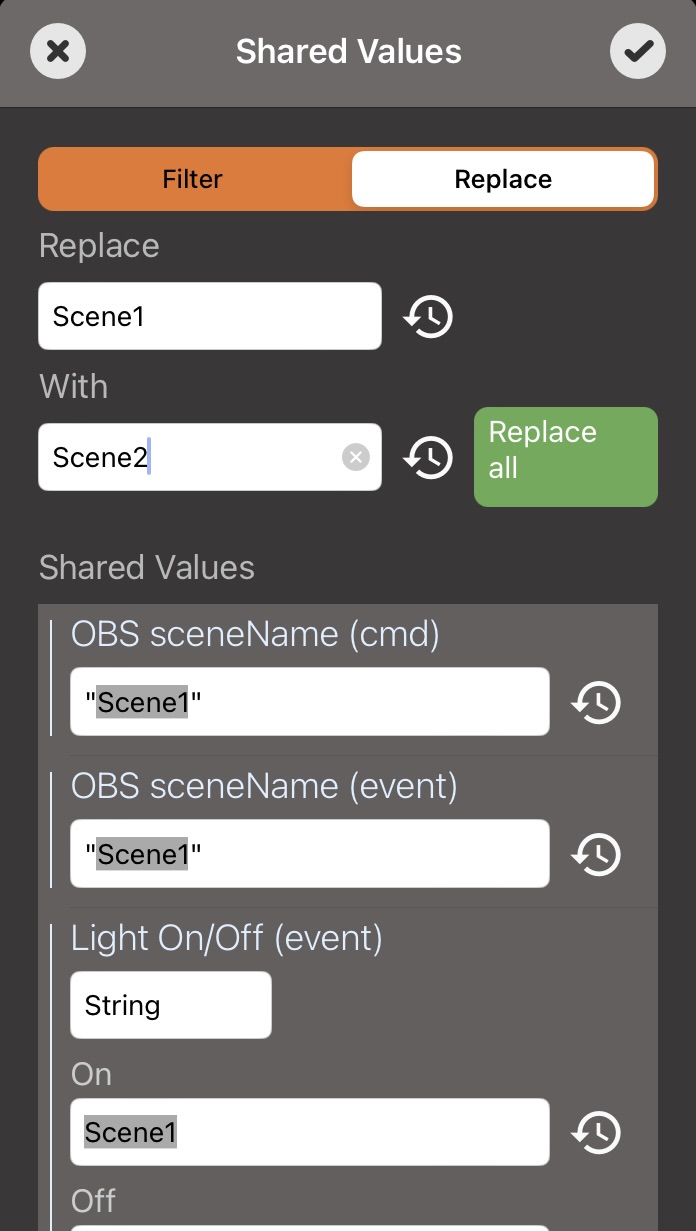
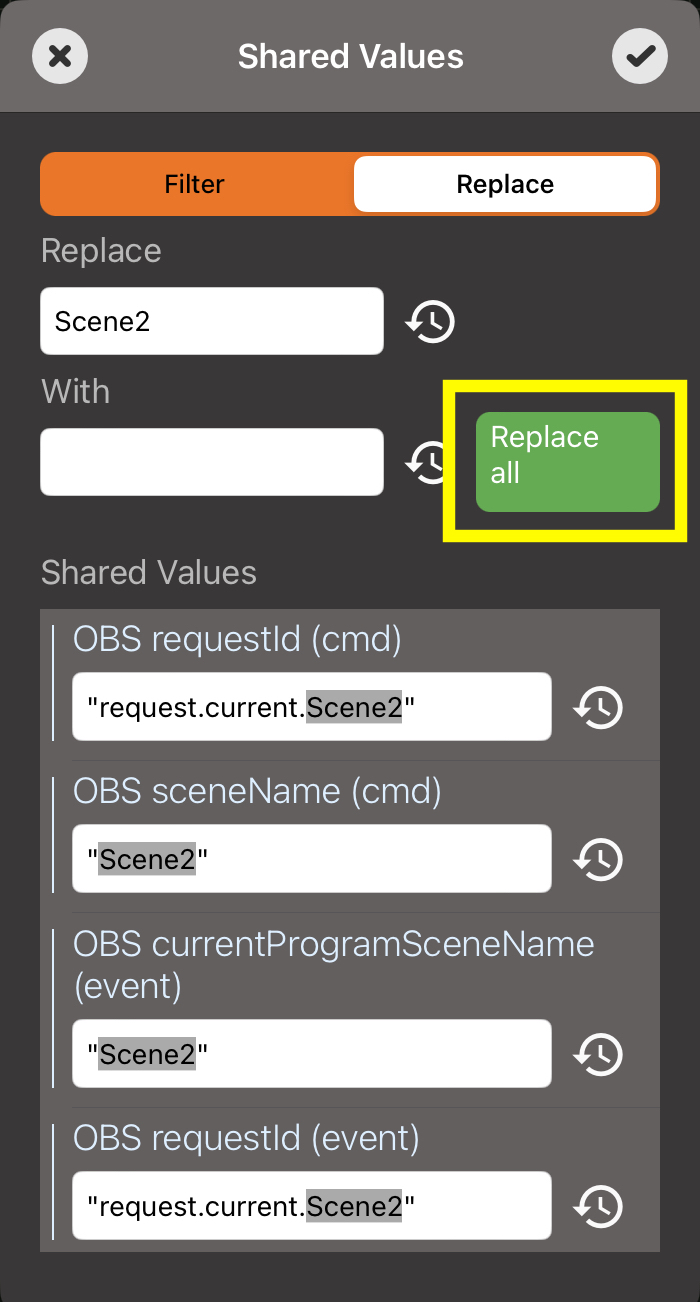
Enter the existing text and its replacement, review the matching fields, and use Replace all. This can update the same text across several item, command, and event settings at once.
Example
Adapt a duplicated OBS scene button.
Duplicate the configured button.
The original button activates “Scene1” and reacts when that OBS scene becomes active.
Open Shared Values for the copy.
Select the duplicated button and choose “Values” from its menu.
Replace the scene name.
Replace “Scene1” with “Scene2” across the matching command and event fields.
Confirm and test.
The copied button now activates “Scene2” and can indicate when that scene is active.