
DeviceJockey
Interfaces
Bluetooth MIDI
Exchange MIDI data wirelessly between DeviceJockey and another iPhone, iPad, or Mac.
Two complementary roles
One device advertises. The other connects.
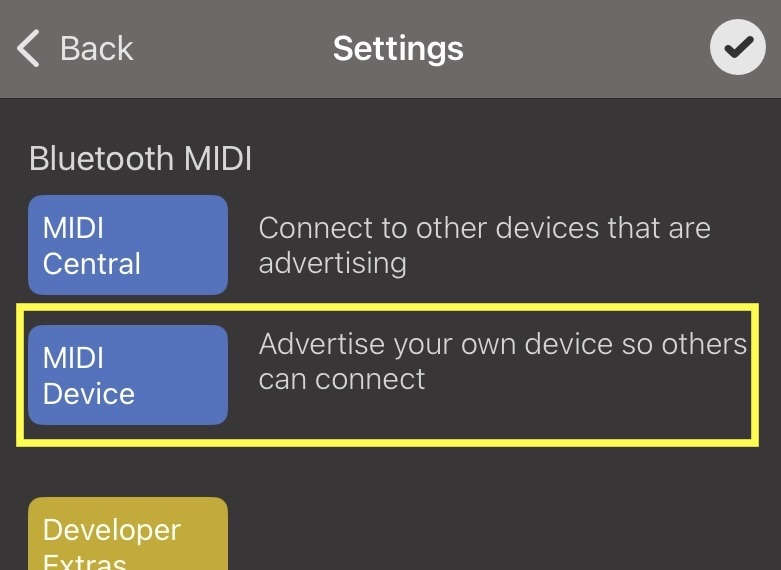
DeviceJockey provides two Bluetooth MIDI modes. MIDI Device advertises your iPhone or iPad so another device can find it. MIDI Central searches for advertising Bluetooth MIDI devices and establishes the connection.
The established MIDI connection is bidirectional. Both sides can send and receive MIDI data regardless of which side advertised the connection.
Use MIDI Device on one side to advertise. On the other side, connect through MIDI Central or the Bluetooth window in macOS Audio MIDI Setup. The normal system Bluetooth settings are only relevant when removing a failed pairing during troubleshooting.
DeviceJockey
settings
Open the Bluetooth MIDI controls.
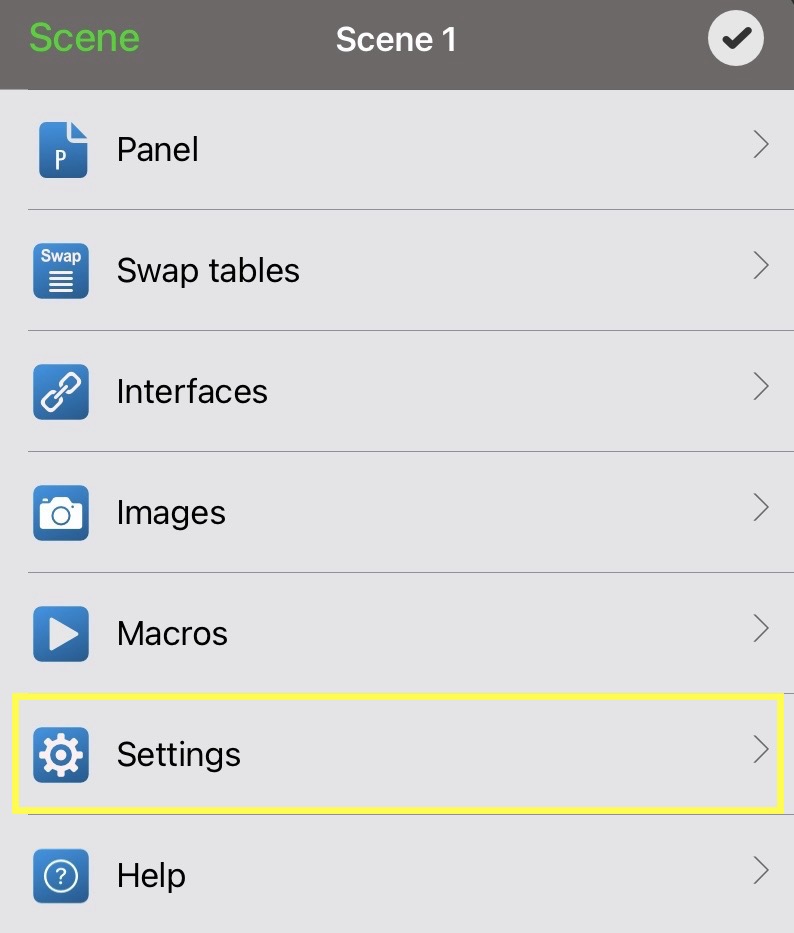
Open Settings in DeviceJockey. The Bluetooth MIDI area contains the MIDI Central and MIDI Device buttons.
iPhone or iPad to iPhone or iPad
Connect two iOS or iPadOS devices.
Advertise Device A
Open Settings, Bluetooth MIDI, then MIDI Device on the first device.
Search on Device B
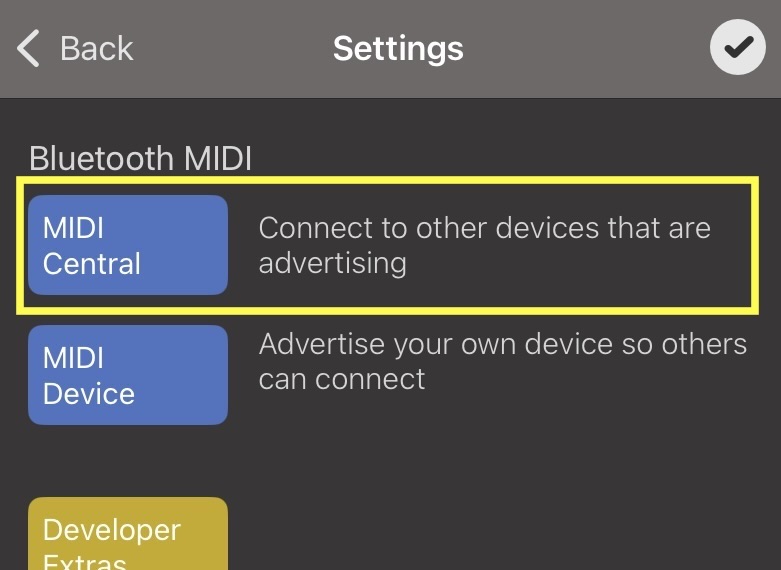
Open Settings, Bluetooth MIDI, then MIDI Central on the second device.
Select Device A
Choose the advertising device from the list and confirm the pairing prompt on either device if it appears.
Use MIDI
After connecting, both devices can send and receive MIDI data.
Mac to iPhone or iPad
Use Audio MIDI Setup on the Mac.
Open Audio MIDI Setup, choose MIDI Studio, then open Bluetooth.
Enable Advertise in the Bluetooth Configuration window.
Open Settings, Bluetooth MIDI, then MIDI Central on the iPhone or iPad and select the Mac.
Confirm pairing if requested. Both sides can then send and receive MIDI.

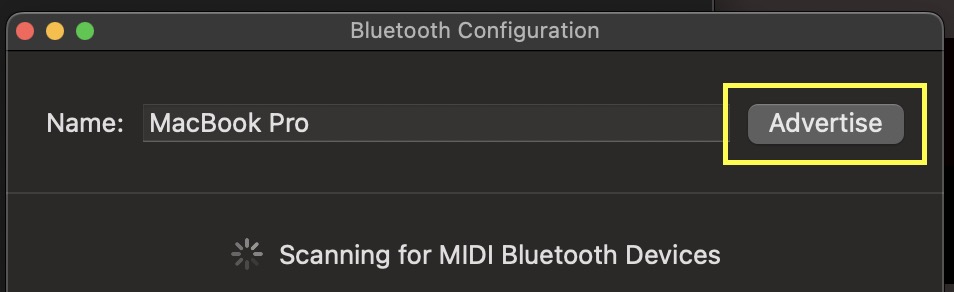
Choose MIDI Device in DeviceJockey, then connect to the iPhone or iPad from the Bluetooth window on the Mac.
Troubleshooting
If the connection remains on “Connecting”.
Look for the iPhone, iPad, or Mac involved in the failed connection.
Choose “Forget This Device” on iOS or iPadOS. Choose the corresponding remove or ignore action on macOS.
Turn Bluetooth off and back on before trying again.
Use MIDI Device on one side and MIDI Central or the Mac Bluetooth window on the other.
After successful MIDI pairing, leave the device in the system Bluetooth list. It does not need to be removed after each session.